WINNES GPS APP Full Feature Guide
Tap any feature icon below to open a dedicated explanation page. Each page uses the provided APP guide content and includes the matching interface screenshot.
APP Home
Click a feature to open the full explanation page.
More APP Sections
Data Statistics
View the daily activity status of pets by time period.
Find Pets
Locate compatible pet devices using light or sound.
Subscription
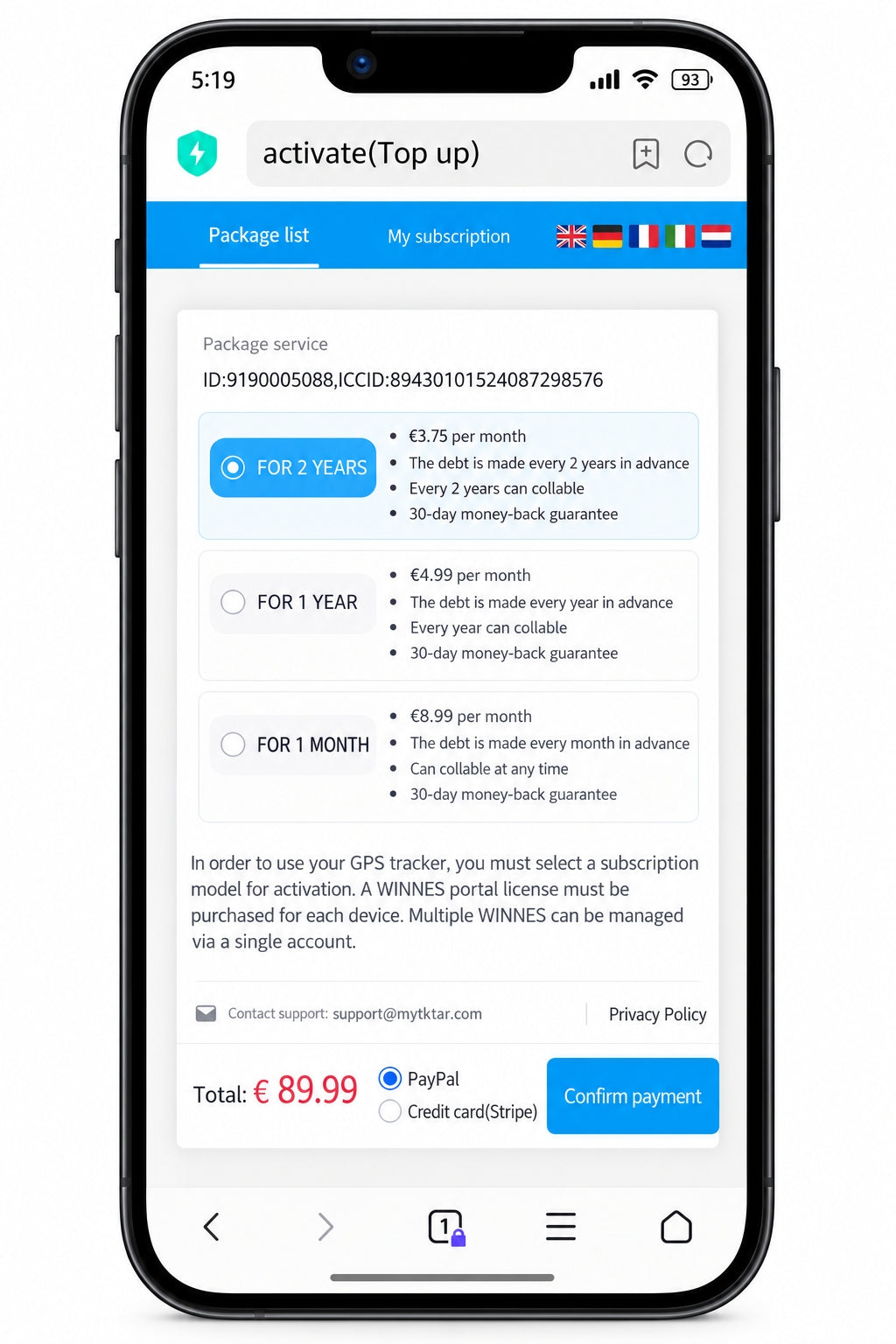
Use the provided SIM card and top up the service.
Home overview
Main entry to all APP functions.
Home
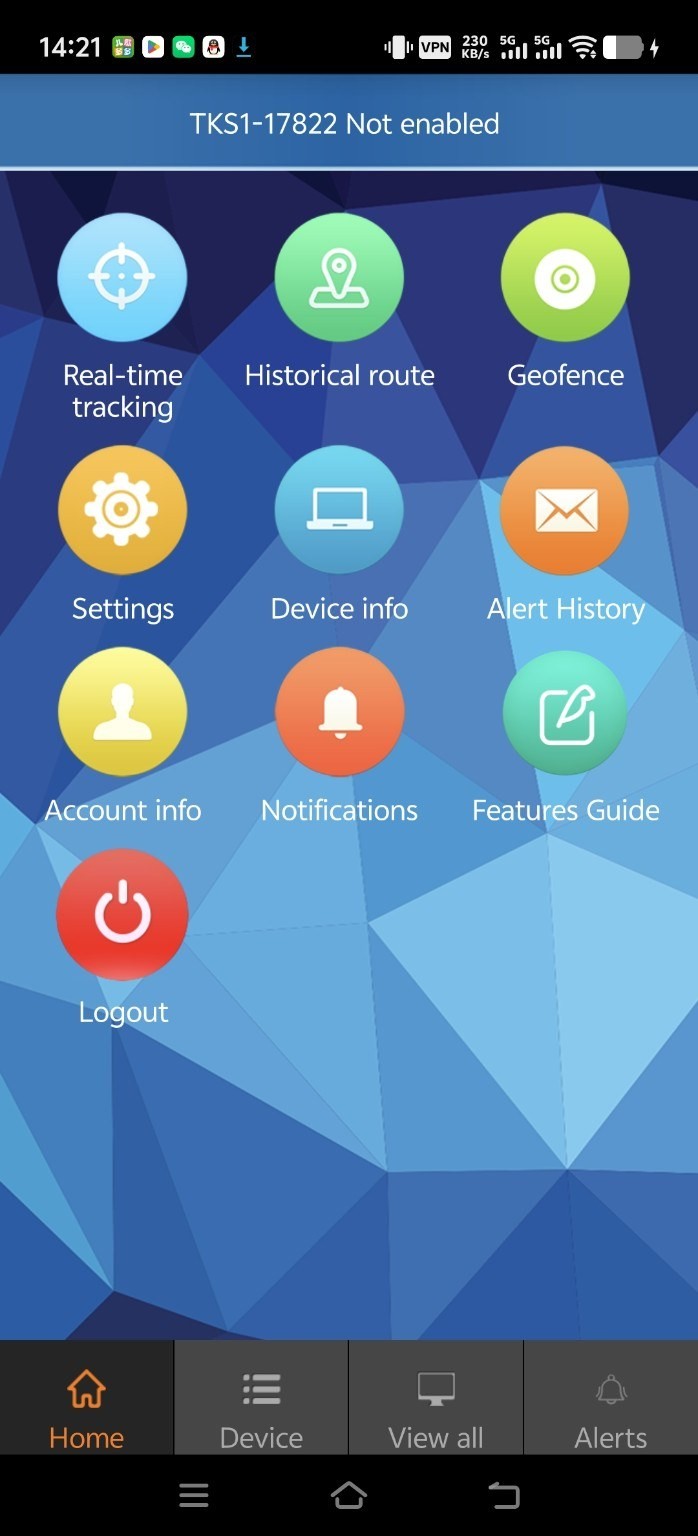
The Home screen is the main navigation page of the WINNES GPS APP. It displays the main feature buttons such as Real-time tracking, Historical route, Geofence, Setting, Device info, Notifications, Features Guide, and Logout.
Use the bottom tabs to switch between Home, Device, View all, and Alerts.
Device
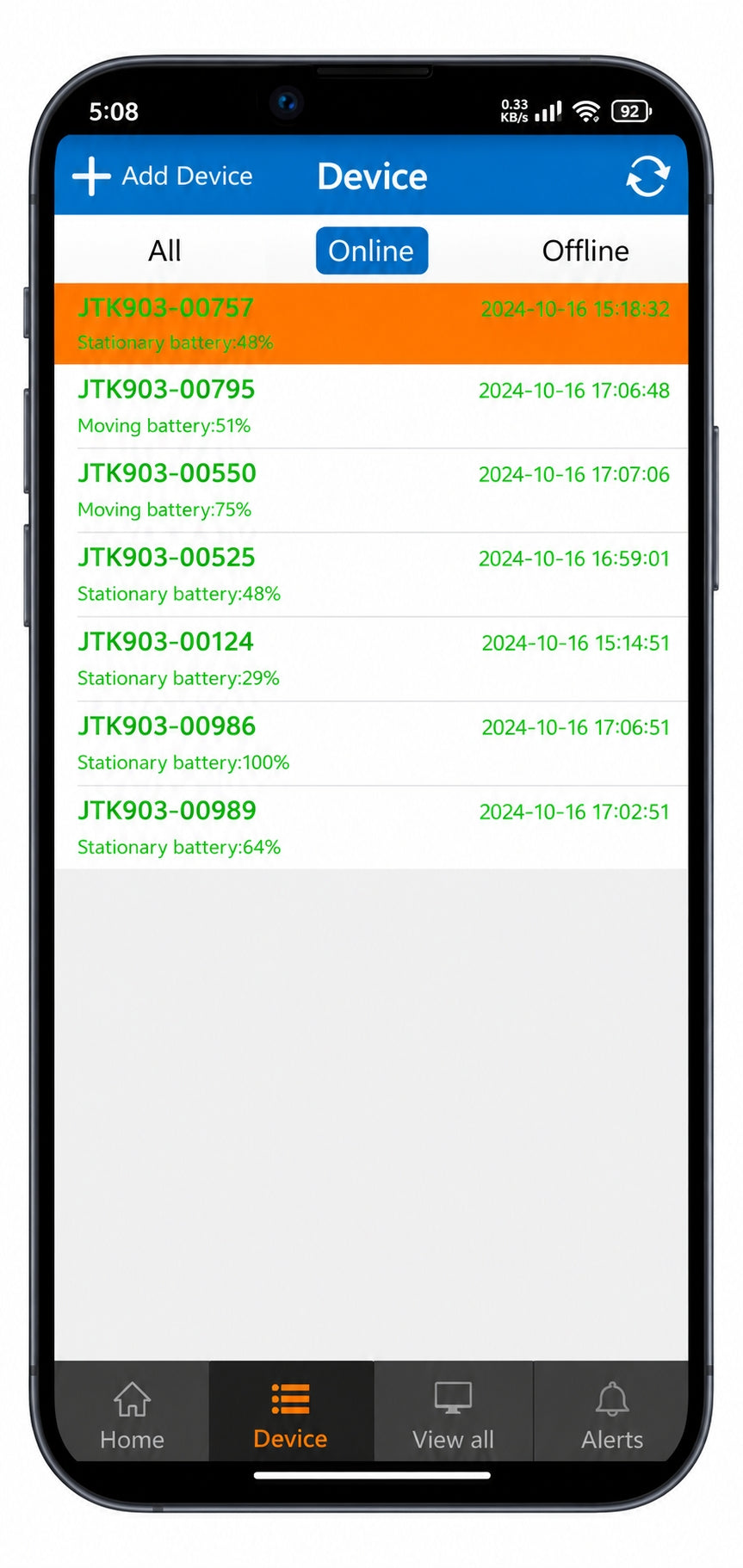
Add, remove and manage devices under your account.
Device
The ID login option is not available; after logging in with the account, the status of all devices under the account is displayed, as well as options to add or remove devices.
Where to find
Device
How to use Device
Add Device: Click the + icon in the upper left corner to open the Add Device interface. Enter or scan the device ID number, and input the password: factory default is 123456 or the last four digits of the device ID. After entering, click Add to add the device.
Remove Device: Long press the device name in the Device interface to bring up the deletion prompt.
Using the Device: Click the device name to enter the device functionality interface, where you can use the corresponding features of the device.
View all
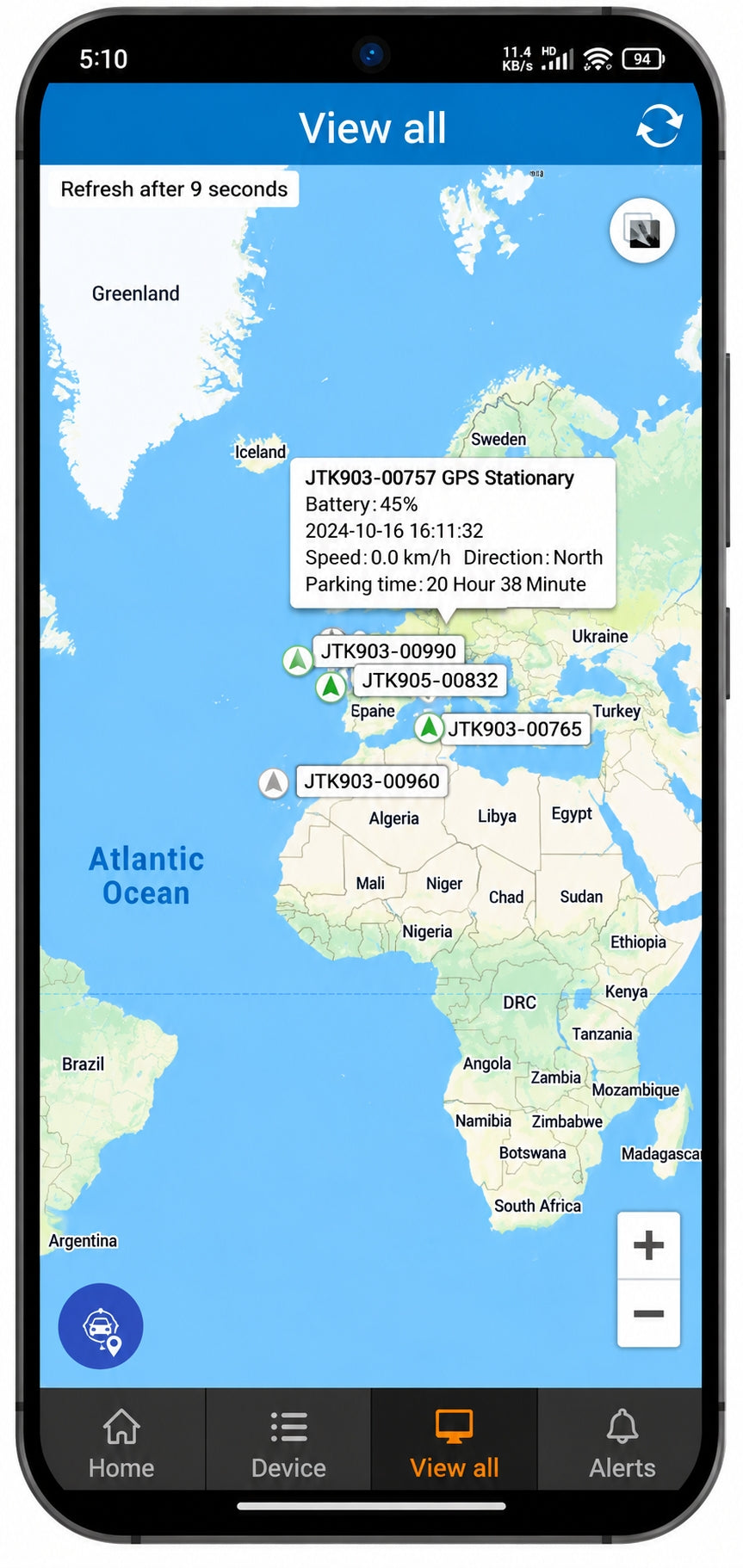
Display all devices on one positioning map.
View all
The ID login option is not available; after logging in with the account, all devices under the account are displayed on a positioning map interface, showing their location statuses.
Where to find
View all
How to Use View all
Log in to the app with your account and enter the View all interface, which displays the location statuses of all devices under the account. You can click on the devices on the map to switch between them and zoom in or out on the map.
Real-time tracking
Display the latest location information of the device in real time.
Real-time tracking
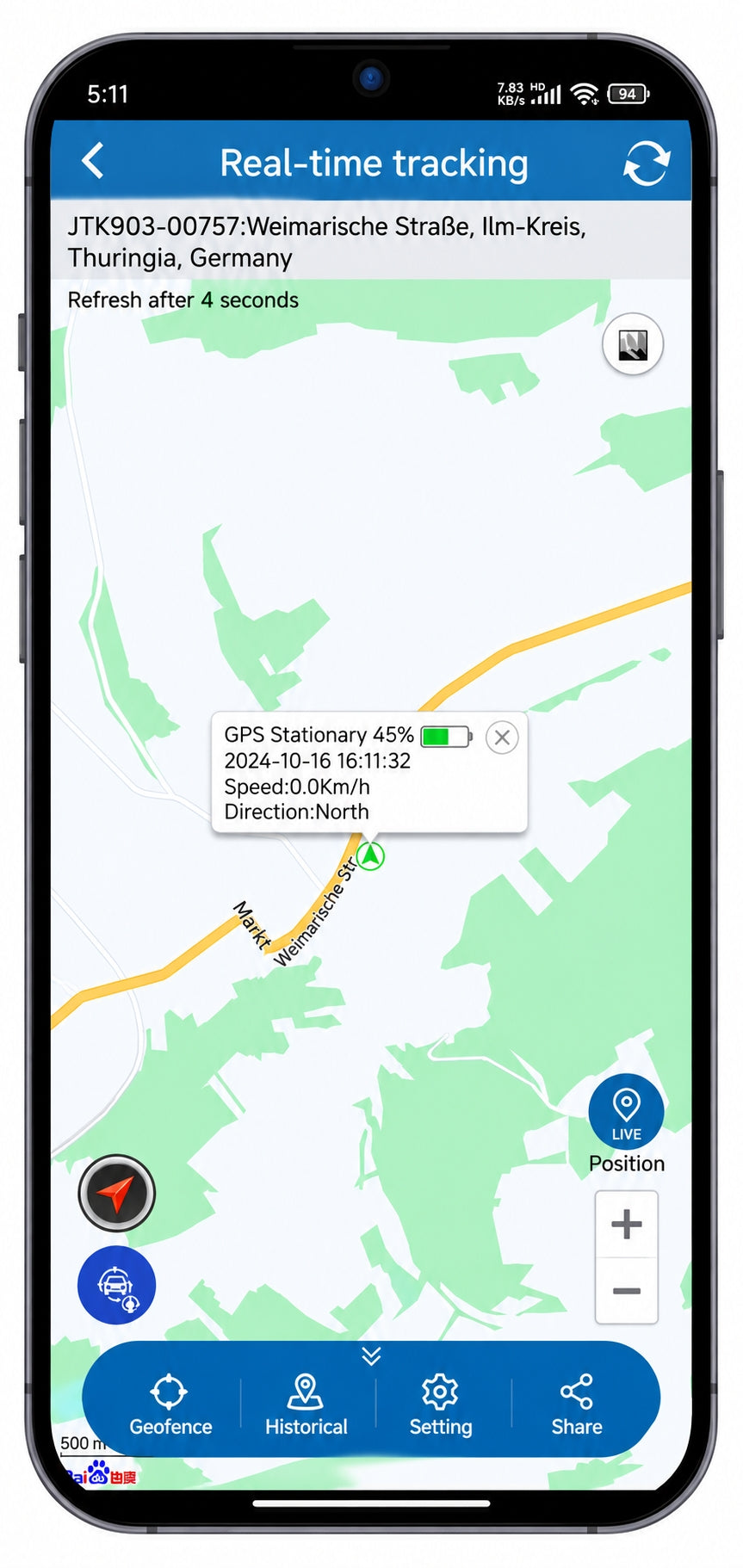
Displays the latest location information of the device in real-time, while also showing the phone's location point and providing navigation from the phone to the device.
Where to find
Home > Real-time tracking
How to use Real-time tracking
- Enter the Real-time tracking interface and click the refresh / wake-up button for real-time location updates.
- Click the device / phone switch button to switch between the device and phone locations.
- Click the navigation button to navigate to the device's location using Google Maps.
- Click the share button to set up and generate a sharing link to share the location with others.
Geofence
Create safe zones and no-go zones.
Geofence
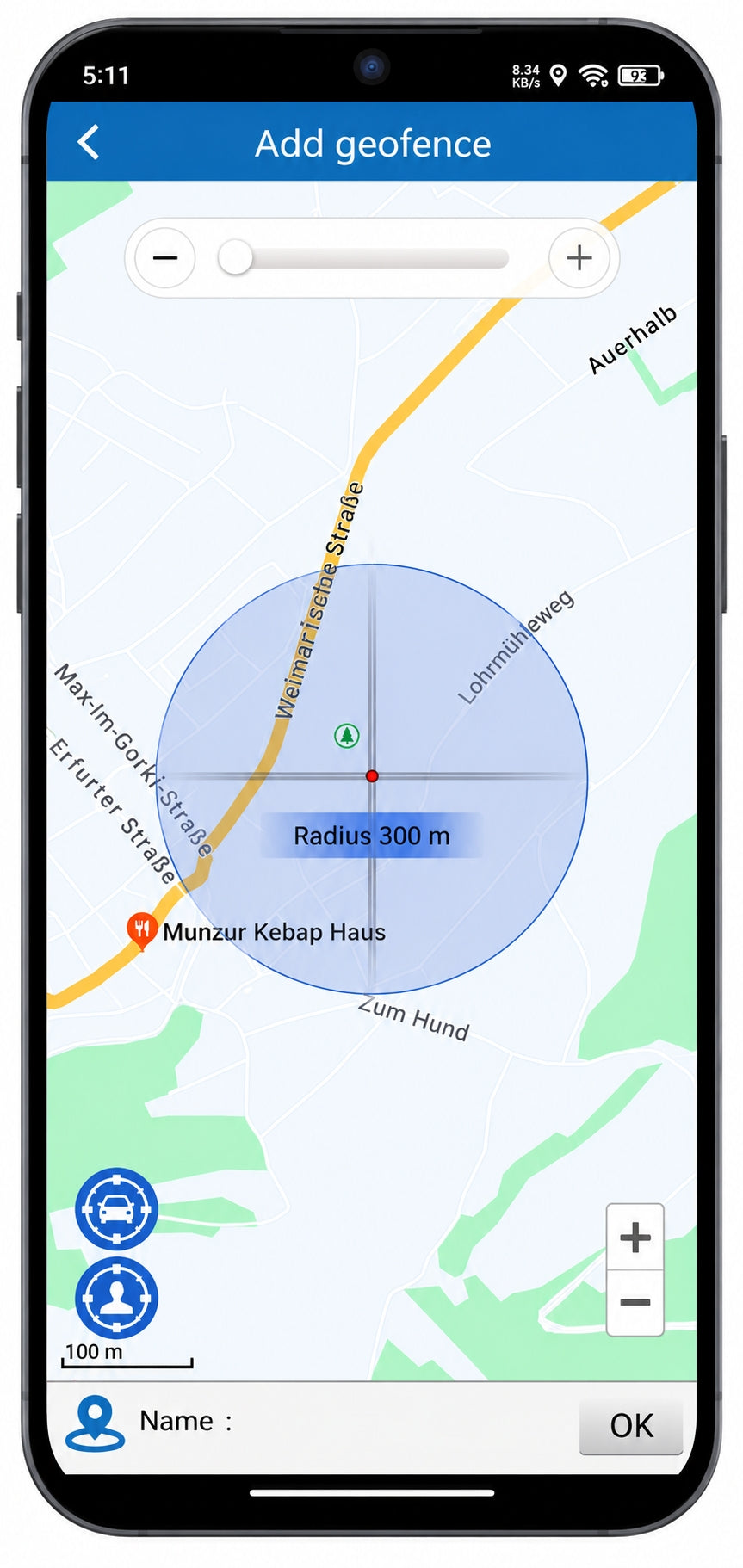
Set safe zones—like your garden—as well as no-go zones your buddy should avoid—like a field near a busy road. You'll receive a quick alert when they leave or enter one of these zones.
Where to find
Home > Geofence
How to add a Geofence
Enter the Geofence interface, click the “+” button to add a fence, set the Name, adjust the size of the fence, move the fence location on the map, and click the button in the upper right corner to save.
Historical route
Play back the device trajectory and records.
Historical Route
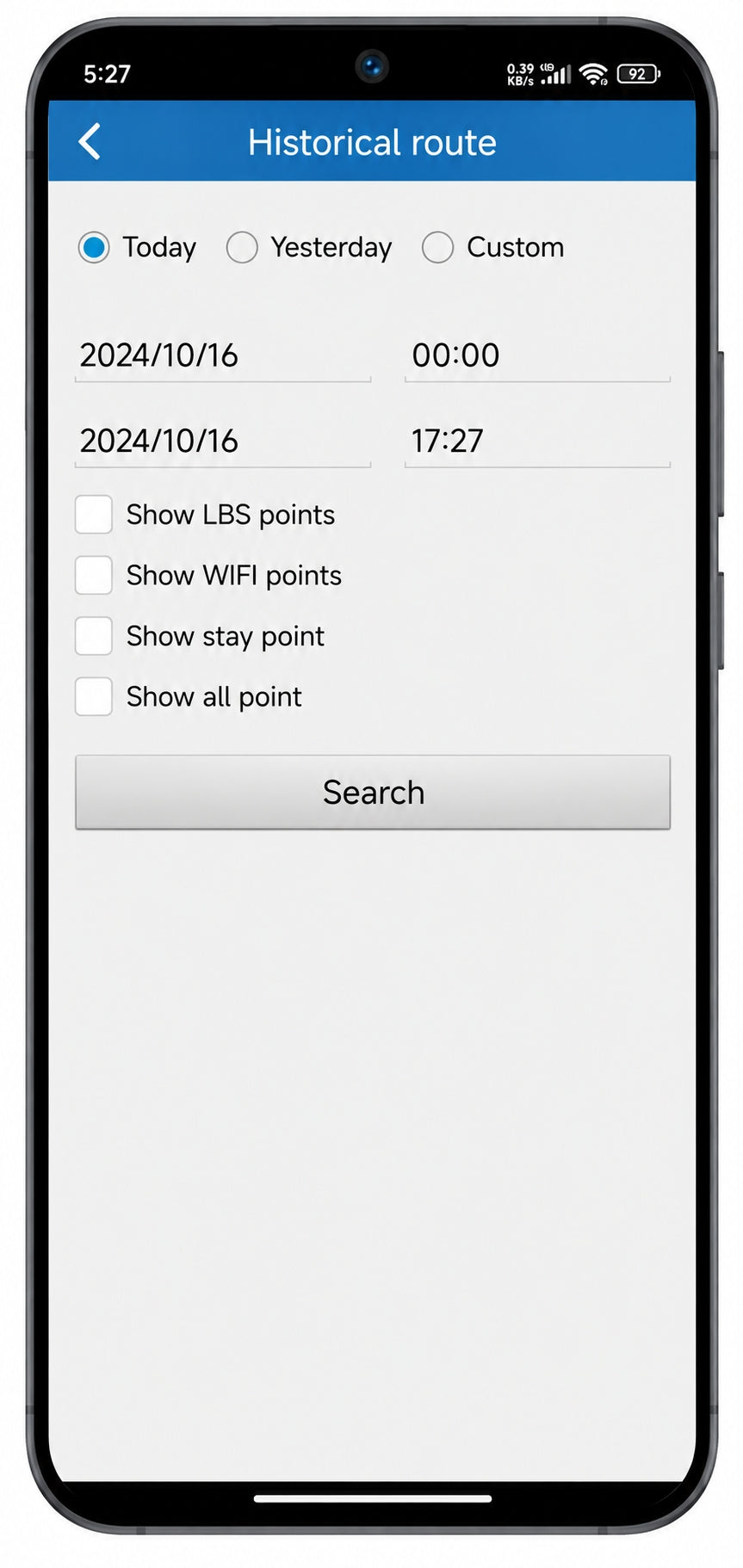
You can play back the daily running trajectory of the device, accurately viewing the time, speed, and latitude and longitude information for each location point. You can play back records from the last 6 months at most.
Where to find
Home > Historical Route
How to Use Historical Route
Enter the Historical Route interface, select the date for playback, click the search button, and the playback interface will appear. You can choose to play automatically or slide the progress bar to control playback.
Issue command / Setting
Set device-related function parameters.
Issue Command / Setting
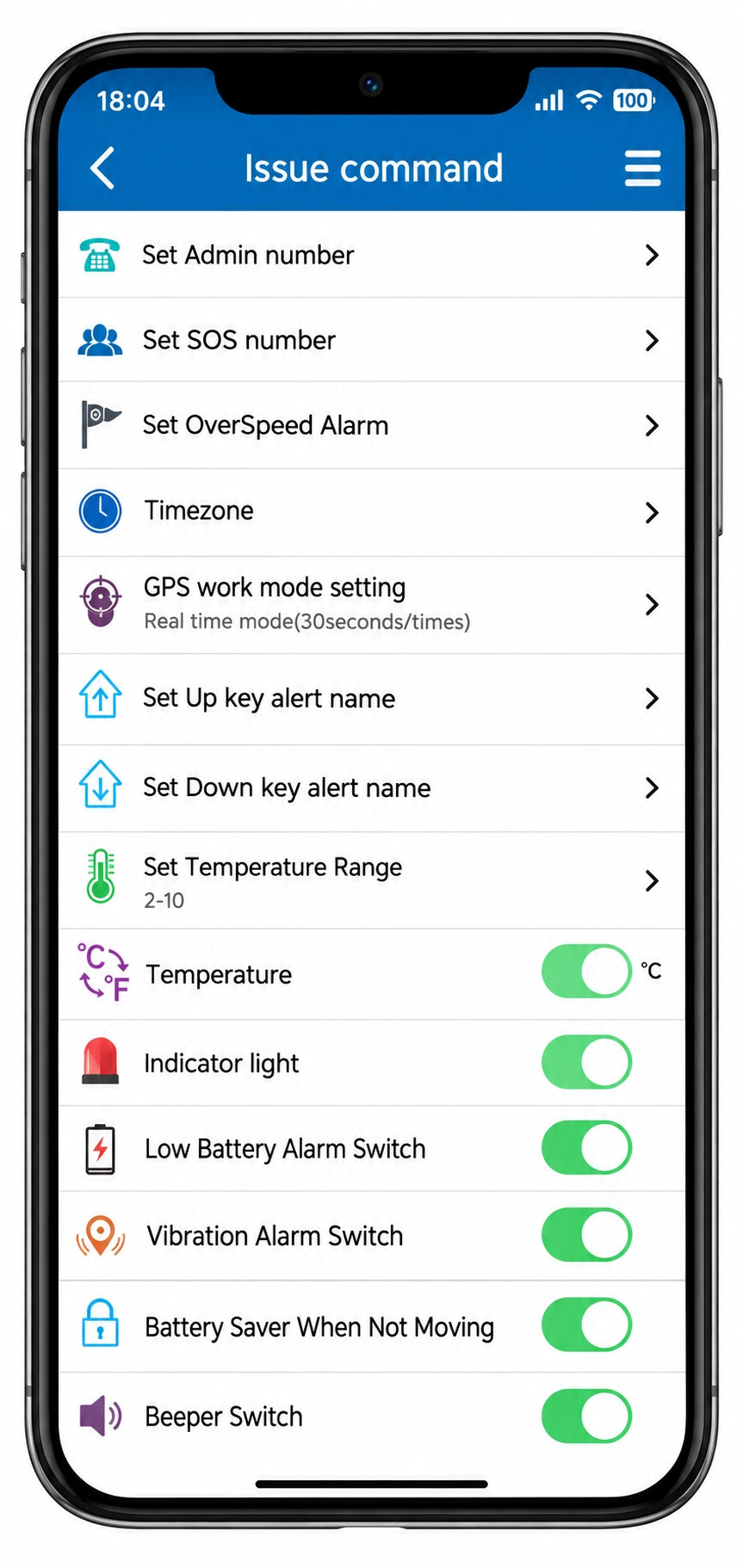
Use this to set device-related function parameters, similar to SMS commands, with the same command saving the latest setting record.
Where to Find
Home > Issue Command / Home > Real-Time Tracking > Setting
How It Works
Enter the Issue Command / Setting interface.
1. The list of setting commands may vary between different models of devices; please refer to the model guide.
2. Only when the SIM card inserted into the tracker has SMS functionality can the main control number and SOS number receive SMS alerts.
- Set Admin Number: The phone number that can control the device by SMS and receive the alarm message. (Canceled by deleting the phone number and clicking “OK”.)
- Set SOS Number: The number that can receive the alarm message. (Cancel the SOS number by deleting the phone number and clicking “OK”.)
- Set Overspeed Alarm: Input speed value to set it. You'll get a quick alert when the speed exceeds the set speed. (Cancel the overspeed alarm by entering “0” and clicking “OK”.)
- Set Timezone: Set the time zone for SMS tracking message. (The timezone is a number, e.g., -1, 0, 1.)
- GPS Work Mode Setting: For selecting the upload frequency of device positioning data: factory default is 60 or 600 seconds. (The smaller the interval, the more detailed the tracking; the larger the interval, the more power-saving.)
- Low Battery Alarm Switch: Turn on/off the low battery alarm message function.
- Vibration Alarm Switch: After this setting is turned on, a vibration alarm will be generated if the device vibrates again after being stationary for 5 minutes.
- Indicator Light: Turn on/off the LED indicator light.
- Moving Alarm Switch: After this setting is turned on, a moving alarm will be generated if the device vibrates continuously.
- Battery Saver When Not Moving: After this setting is turned on, the device will enter deep sleep mode if it is stationary for 10 consecutive minutes, and all communications will be turned off. It can only be woken up by vibration.
- Set Up Key Alert Name: Modify the alert name of the up key.
- Set Down Key Alert Name: Modify the alert name of the down key.
- Set Temperature Range: E.g., set “-10 to 35” (an alarm will occur if the temperature exceeds this range).
- Temperature: F and C are temperature unit switching options.
- Beeper Switch: After this setting is turned on, there will be a beep after the Up key / SOS key / Down key successfully generates an alarm. Another beep will sound after the Up key / SOS key / Down key alarm is uploaded to the APP.
Device info
View and edit device information.
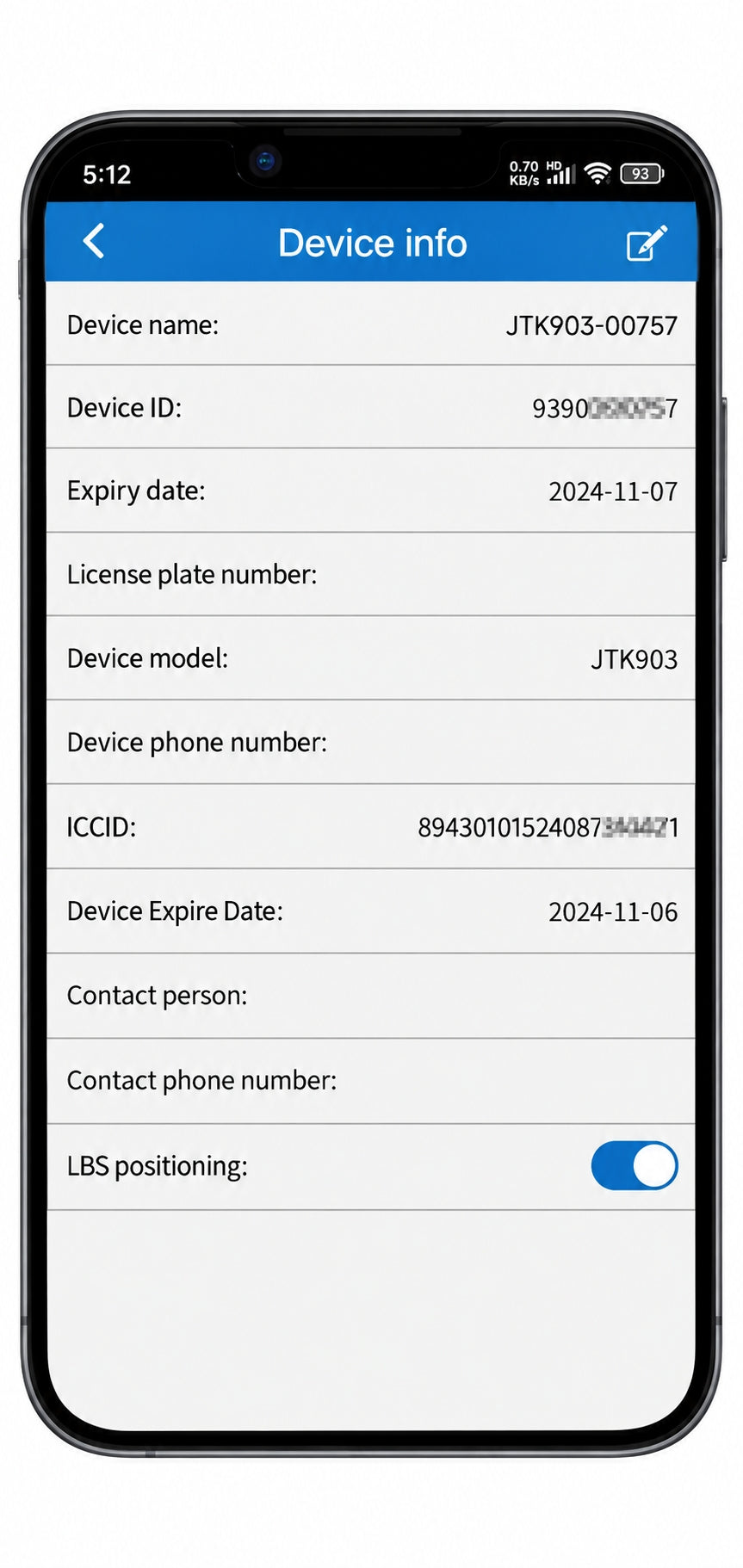
Device Info
Displays the device ID, card ICCD number, expiration date, and allows you to set the device name, license plate number, phone number, contact person, and contact phone number. You can also enable or disable LBS positioning.
Where to Find
Home > Device Info
How to Set the Device Info
Enter the Device Info interface, click the "Edit" button in the top right corner to modify the device name, license plate number, phone number, contact person, contact phone number, etc. Click the "Save" button in the top right corner to save your changes.
Notifications
Turn alarm push notifications on or off.
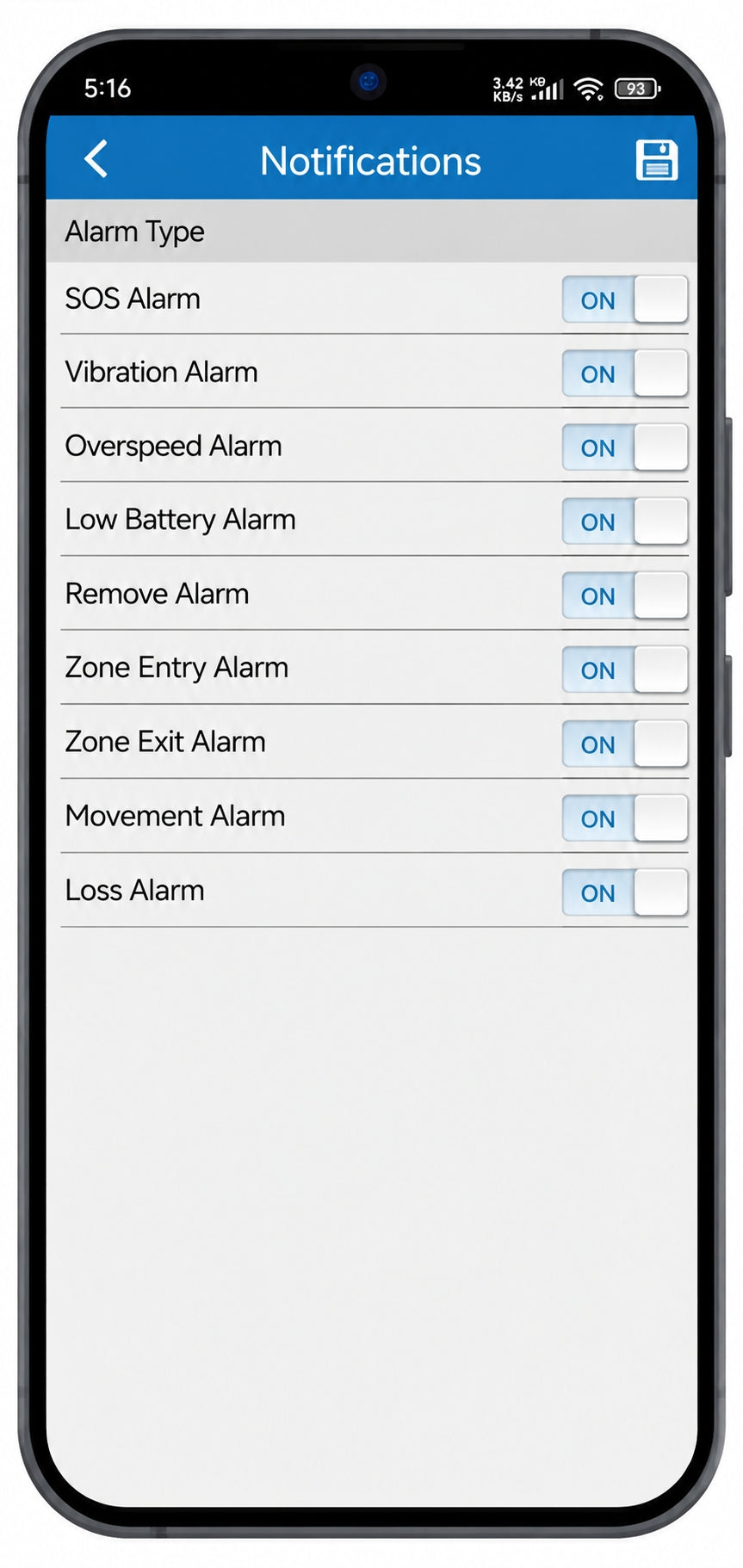
Notifications
Turn alarm notifications on or off. (This setting is unrelated to whether the device generates alarms; it only controls whether alerts are pushed when an alarm occurs.)
Where to Find
Home > Notifications
How to Set Notifications
Note: You need to authorize the Winnes GPS app to push notifications and allow it to run in the background in your phone's system settings to receive push notifications when the tracker detects relevant alarms.
Enter the Notifications interface, toggle the respective notifications on or off, and then click the "Save" button in the upper right corner to save your changes.
Alert Message / Alerts
View alarm messages generated by the device.
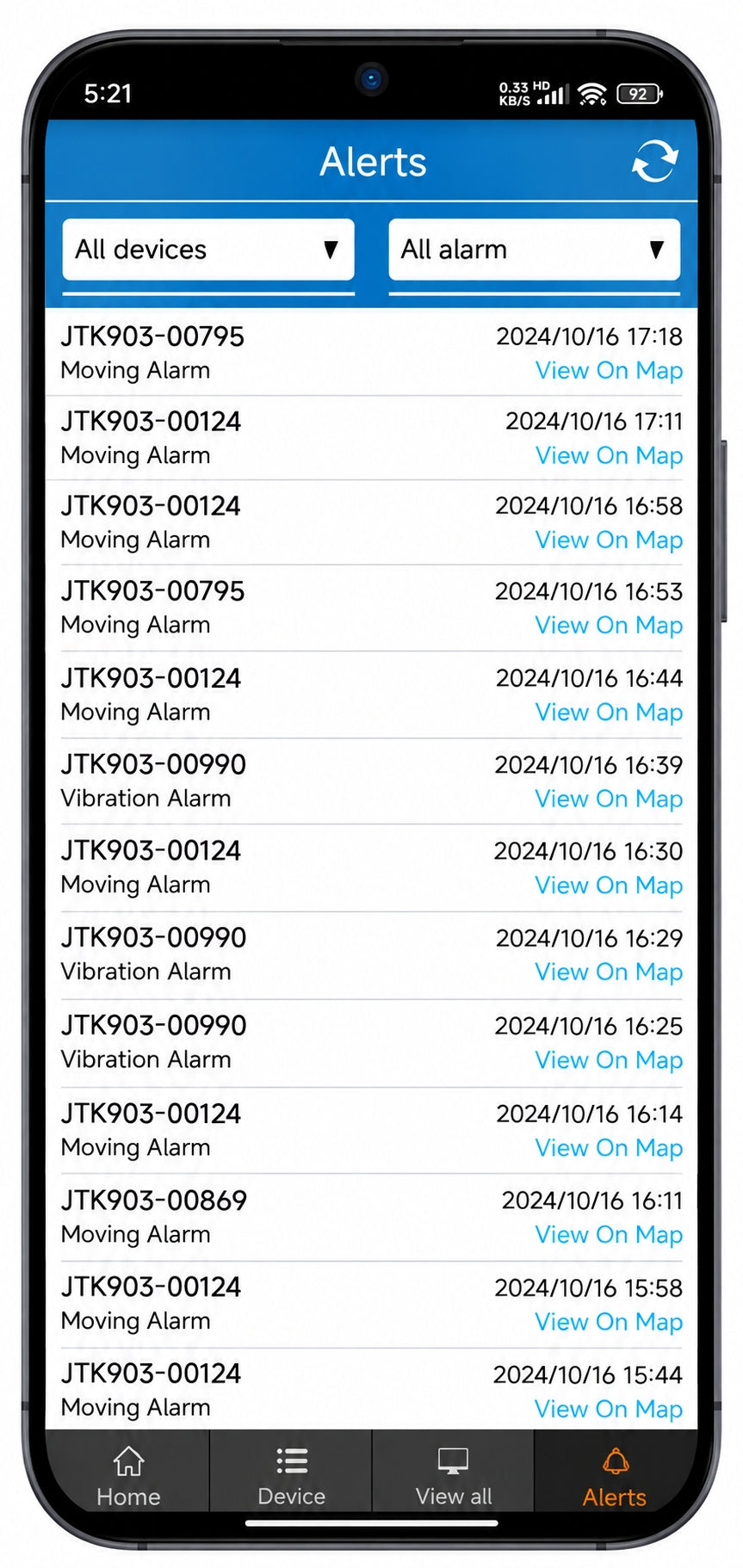
Alert Message / Alerts
View the alarm messages generated by the device.
Where to Find
Home > Alert Message
How to Use Alert Message / Alerts
Enter the Alert Message interface, where you can select to view various alarm messages generated by the device. Long press on an alarm to bring up the delete option.
Data statistics
View the daily activity status of pets.
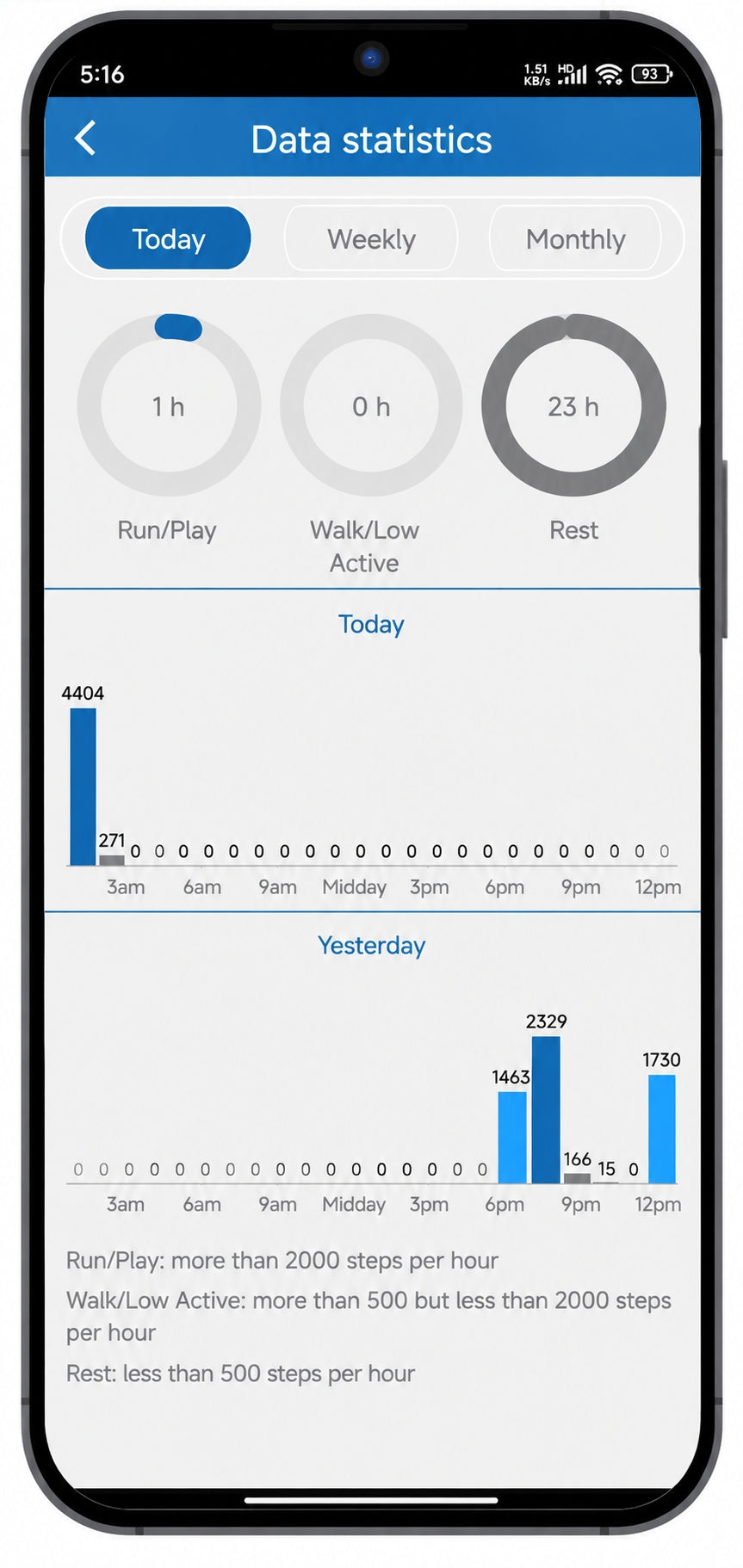
Data Statistics
Some pet model devices have this feature, used to view the daily activity status of pets.
Where to Find
Home > Data Statistics
How to Use Data Statistics
Enter the Data Statistics interface to view the activity status of pets for each time period.
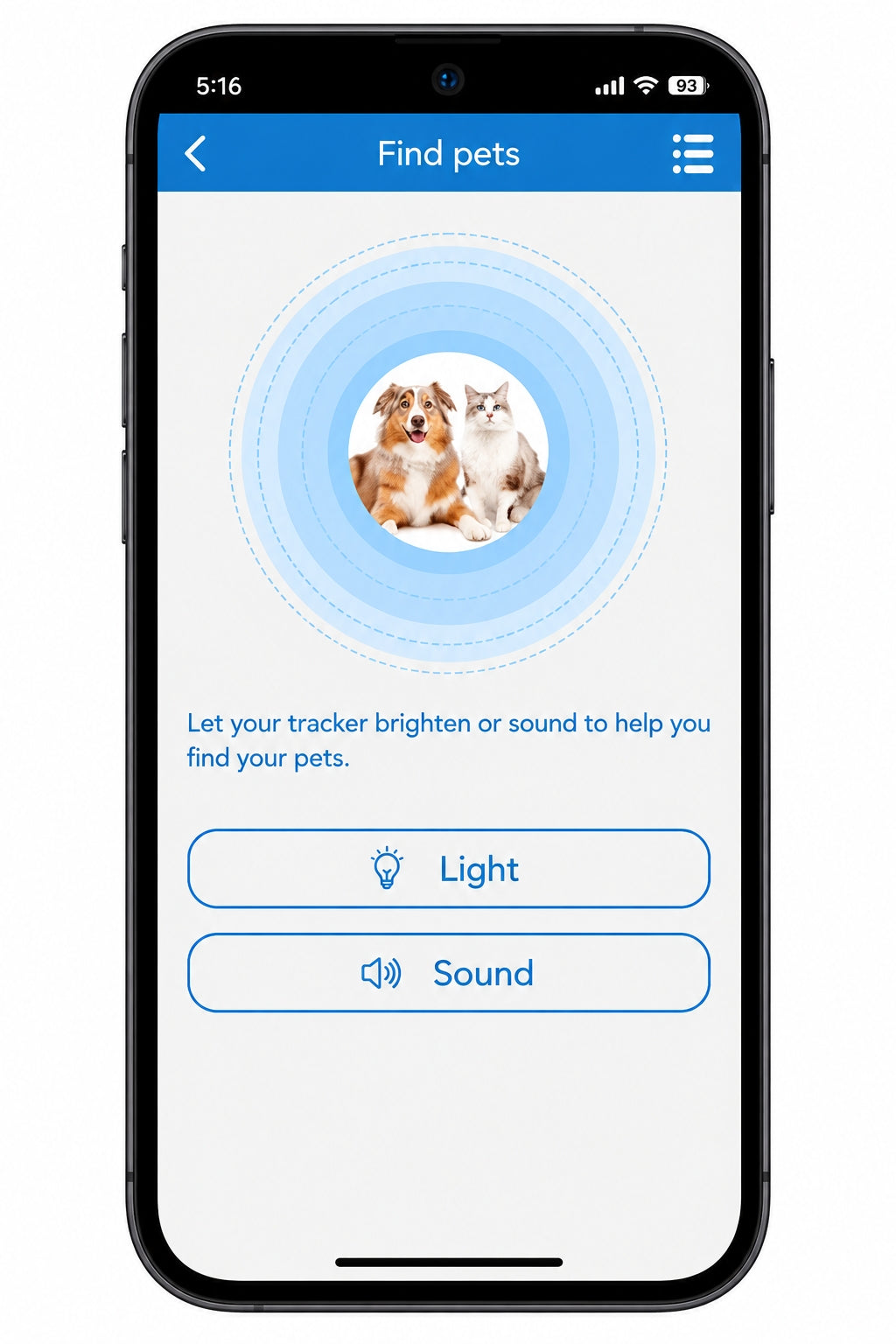
Find Pets
Locate a compatible pet device using light or sound.
Find Pets
Some pet model devices have this feature, allowing you to locate the device using light or sound.
Where to Find
Home > Find Pets
How to Use Find Pets
Enter the Find Pets interface, then click the Light or Sounds button to activate the light or sound. The device will automatically turn off after 10 minutes or can be manually turned off at any time.
Subscription
Use the SIM card provided with the device.
Subscription
To use the SIM card provided with the device, a subscription is required.
Where to find
Home > Subscription
How to use Subscription
Insert the provided SIM card into the GPS tracker and power on the device.
After the device is on, log into the app using the device ID or your account. On the Home screen, you'll see a "Subscription" button. Click it to subscribe and top up.
If the subscription button does not appear after inserting the SIM card and powering on the device, please contact us at: support@mytkstar.com.